 ZynkUp
Put groups and activities in the calendar
Create groups for programs, trips, cultural activities, or student groups. Add the plan, and let students join by QR code, link, or invitation.
With private groups in ZynkUp, every student gets the group plan straight in their own calendar — whether it's a program, a trip, a committee, or a whole cohort. No more digging through long message threads to find out where to be and when. Here's a short guide — from group to invitation to student.
Create the student group
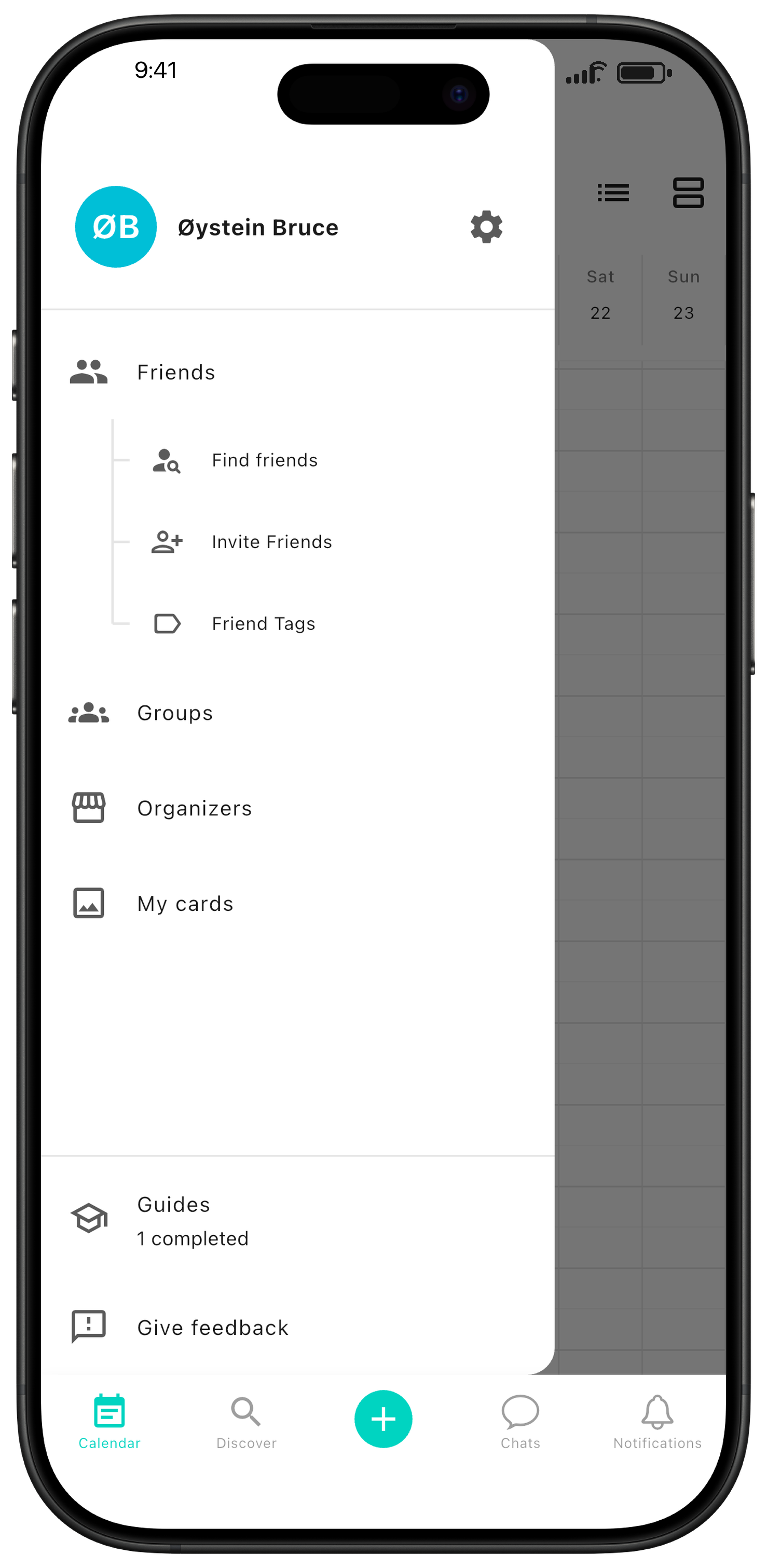
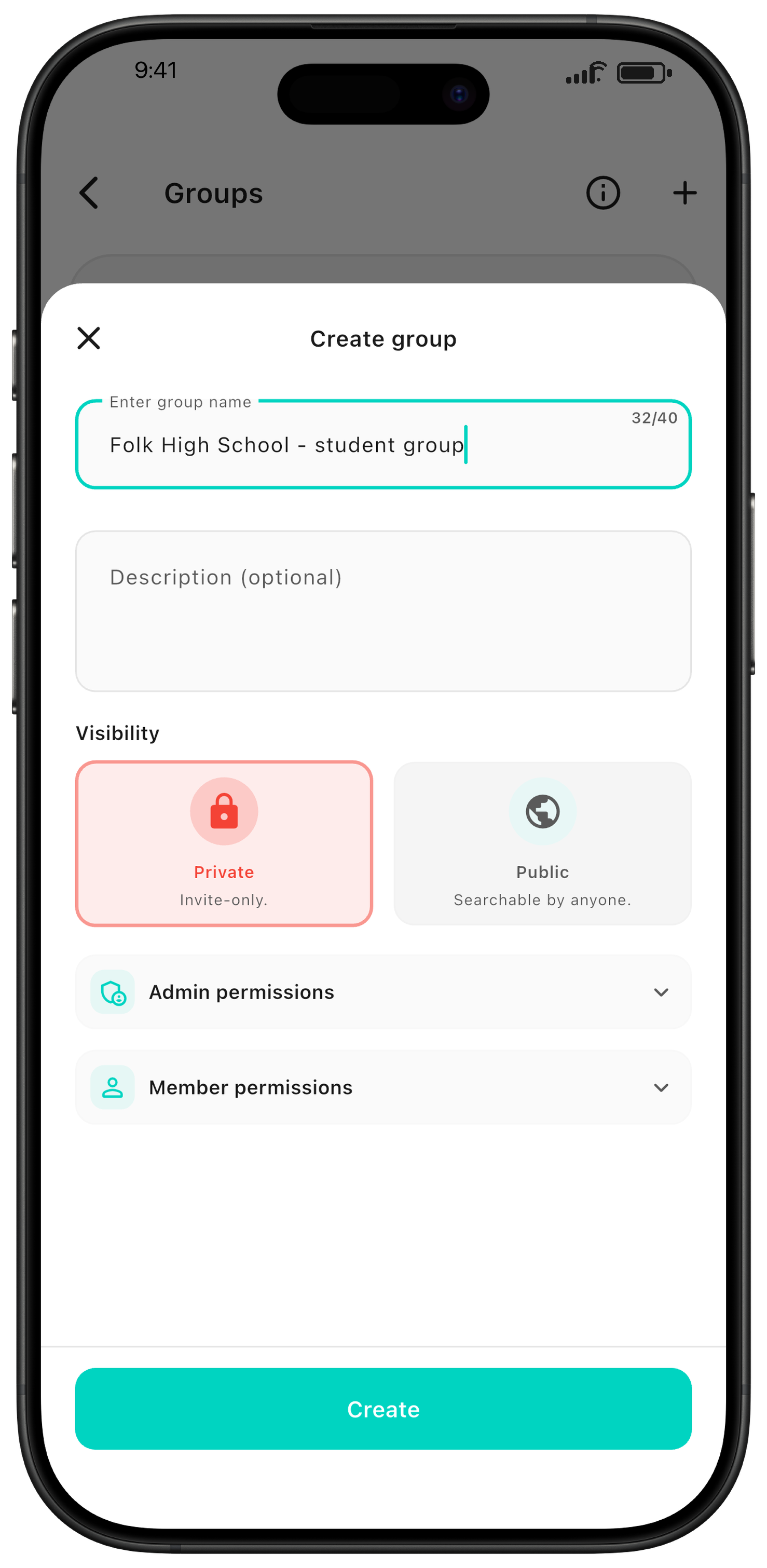
Open the sidebar and go to Groups. Give the group a name, add a description, and choose permissions for admins and members. The group can be for a program, trip, activity, committee, or cohort.
Recommended visibility: We recommend a private group for programs, activities, and student groups at folk high schools, where students need an invitation to join. A public group can be discovered and searched by anyone — choose it only if you need to publish public events.
Create events
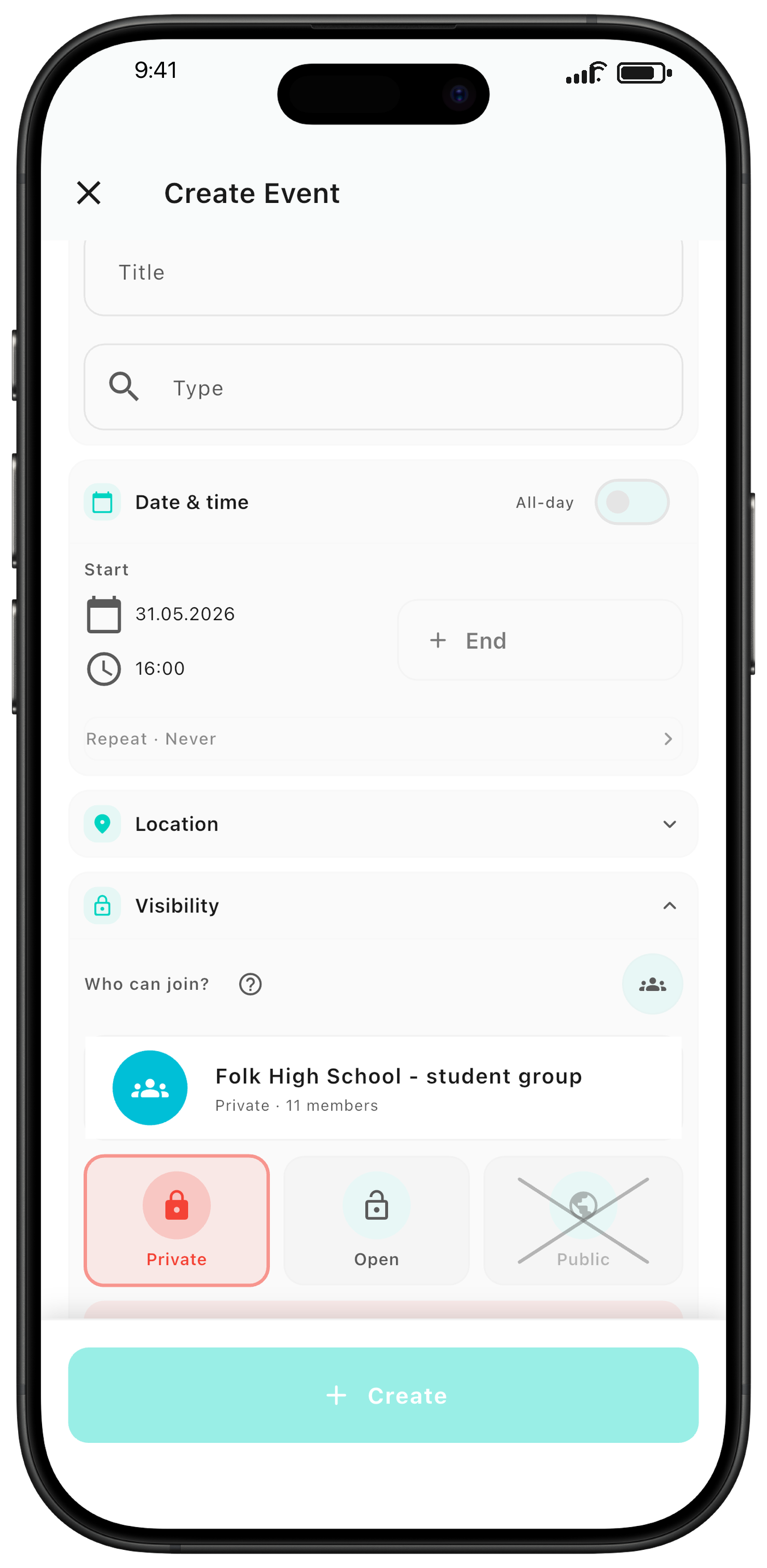
You create group events the same way as regular events — just make sure to choose the correct group under visibility.
Event visibility: In private groups, events are only visible to members. There are two ways to share them:
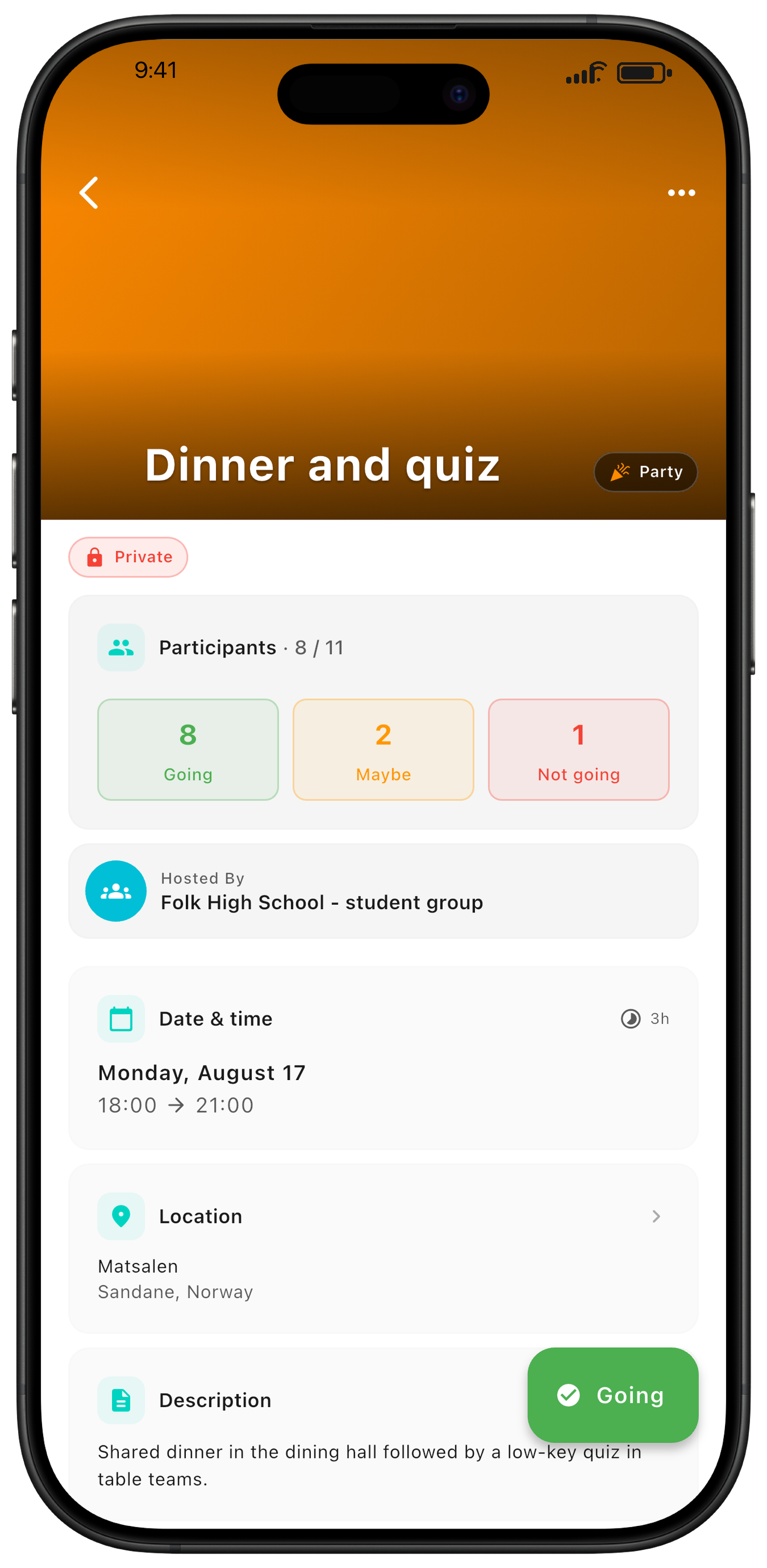
Private: use this for the group plan — the event is added automatically to everyone's calendar.
Open: use this for spontaneous activities or plans outside the group plan. The event appears in Discover under For you and inside the group, but is not added automatically to the calendar. Here you also choose whether to notify the whole group.
Invite the students
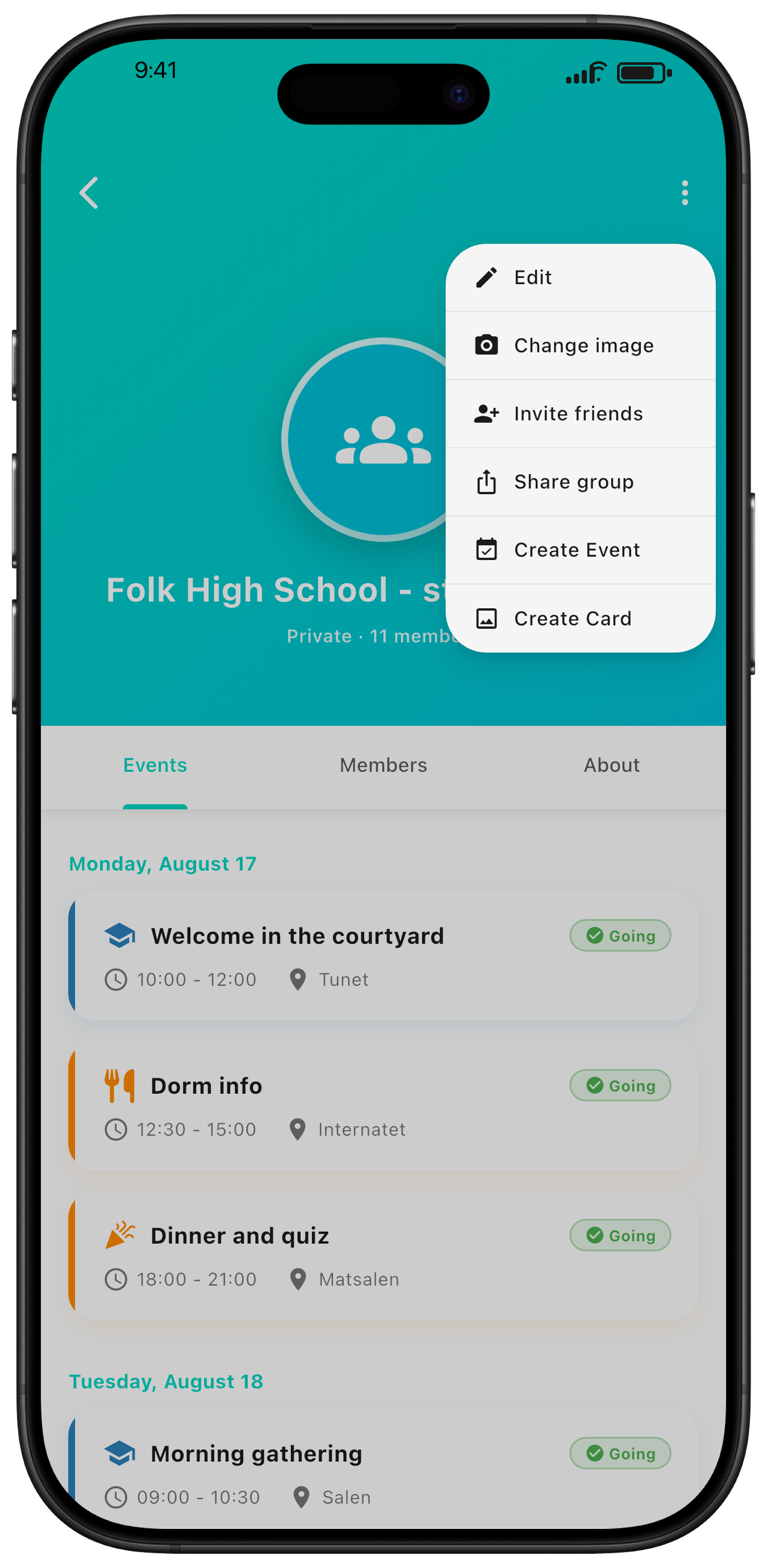
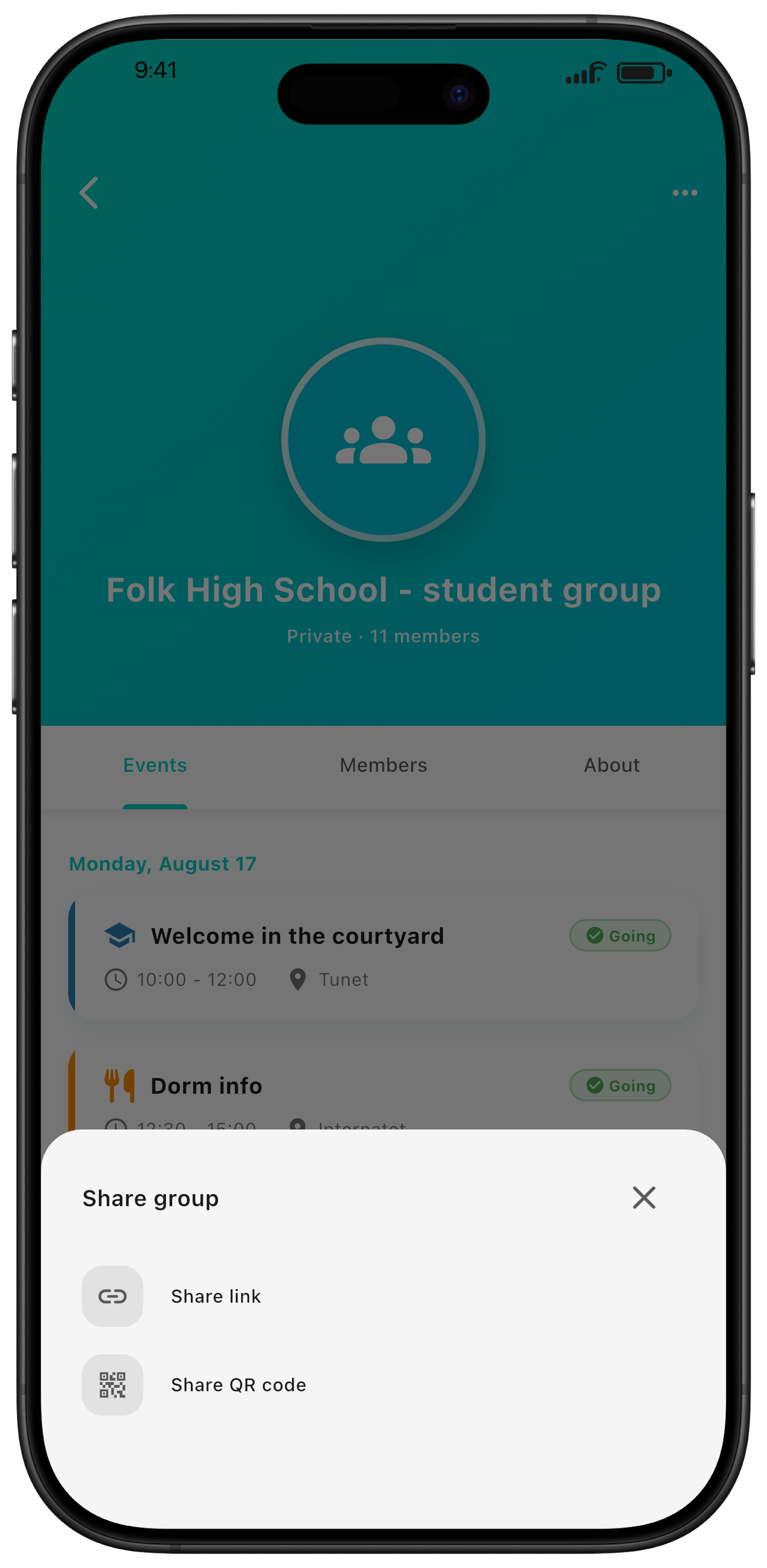
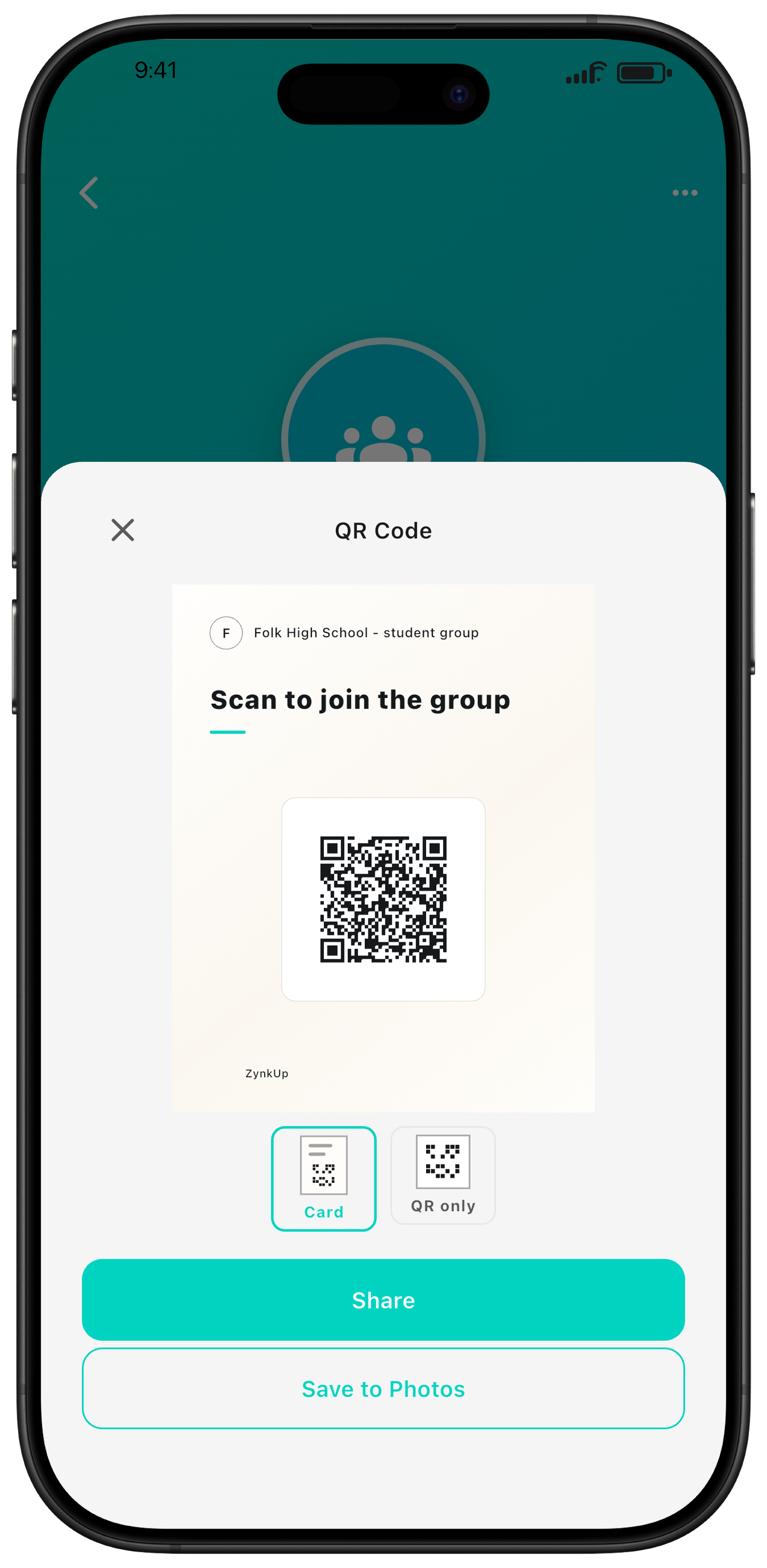
Group members with permission can invite friends by sharing the invitation link or the QR code students scan to join.
The student experience
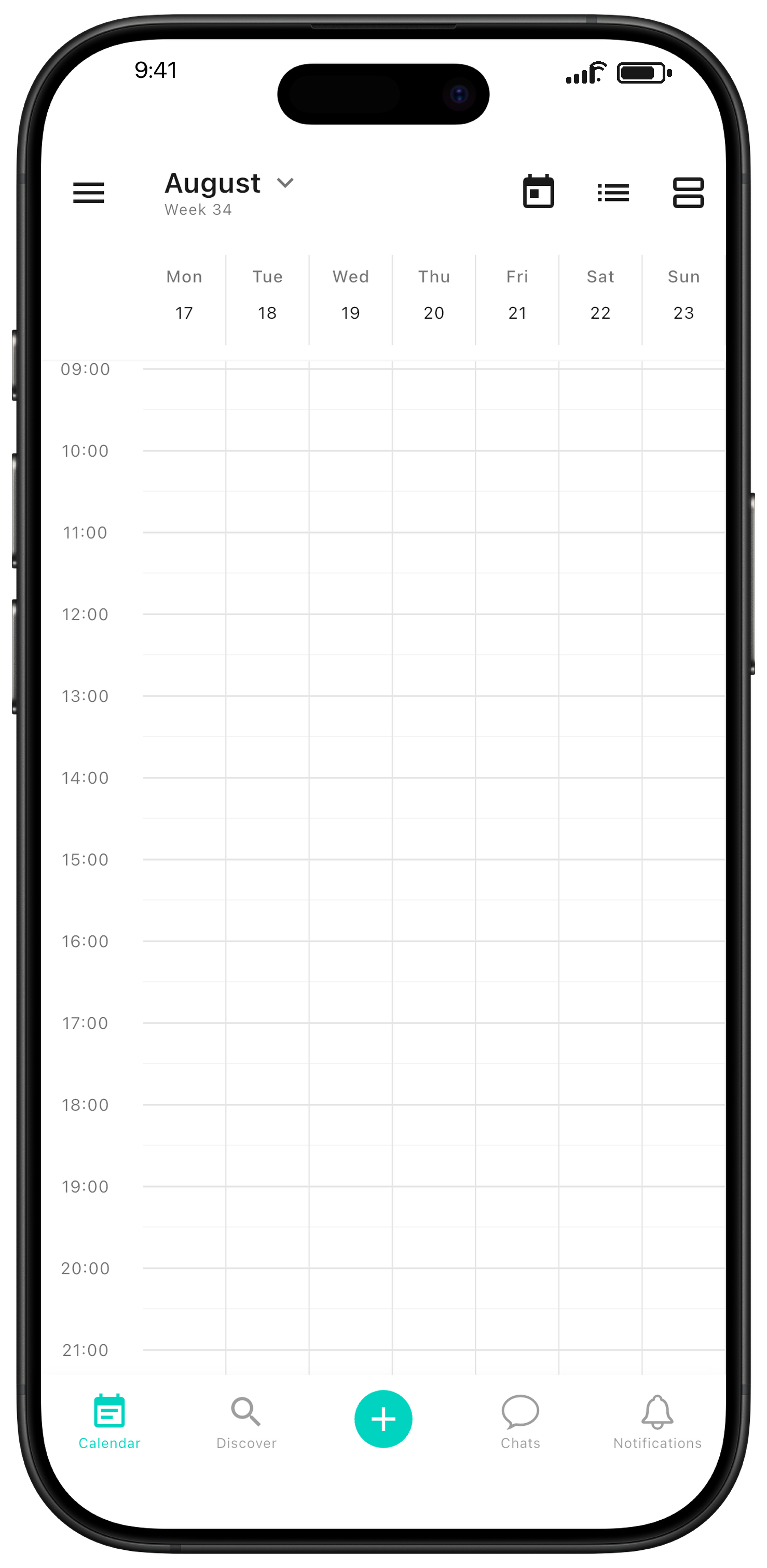
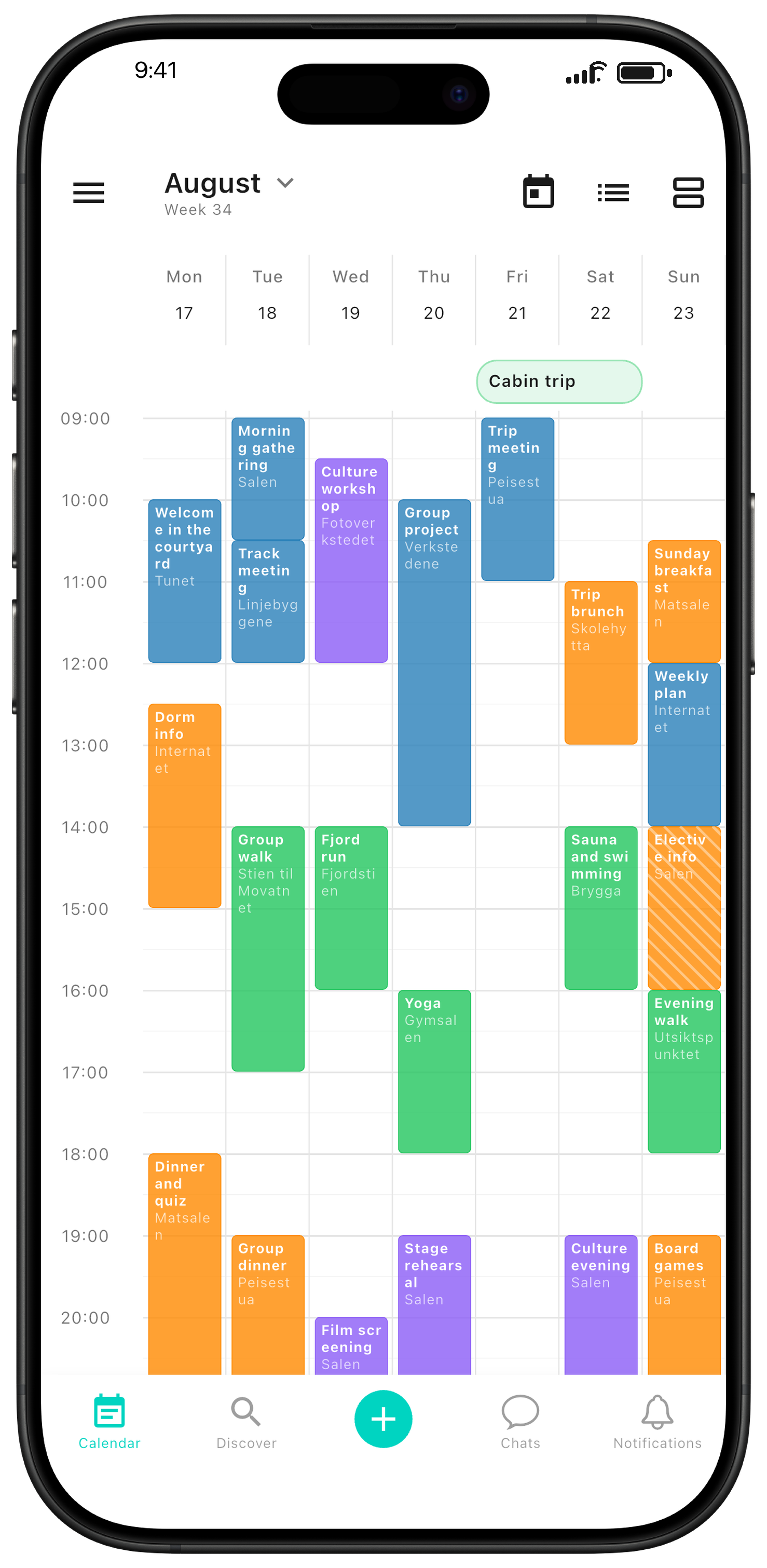
When students join the group, the group plan appears directly in their calendar. That makes it easy to keep track of program meetings, trips, culture nights, and other activities.
Tip: ZynkUp can also be used across several groups at the same folk high school. Add fellow students as friends, keep in touch, and invite each other to activities later in school life.
Event details and chat
Each event has its own detail page. Here you can add extra information and send updates that participants are notified about.
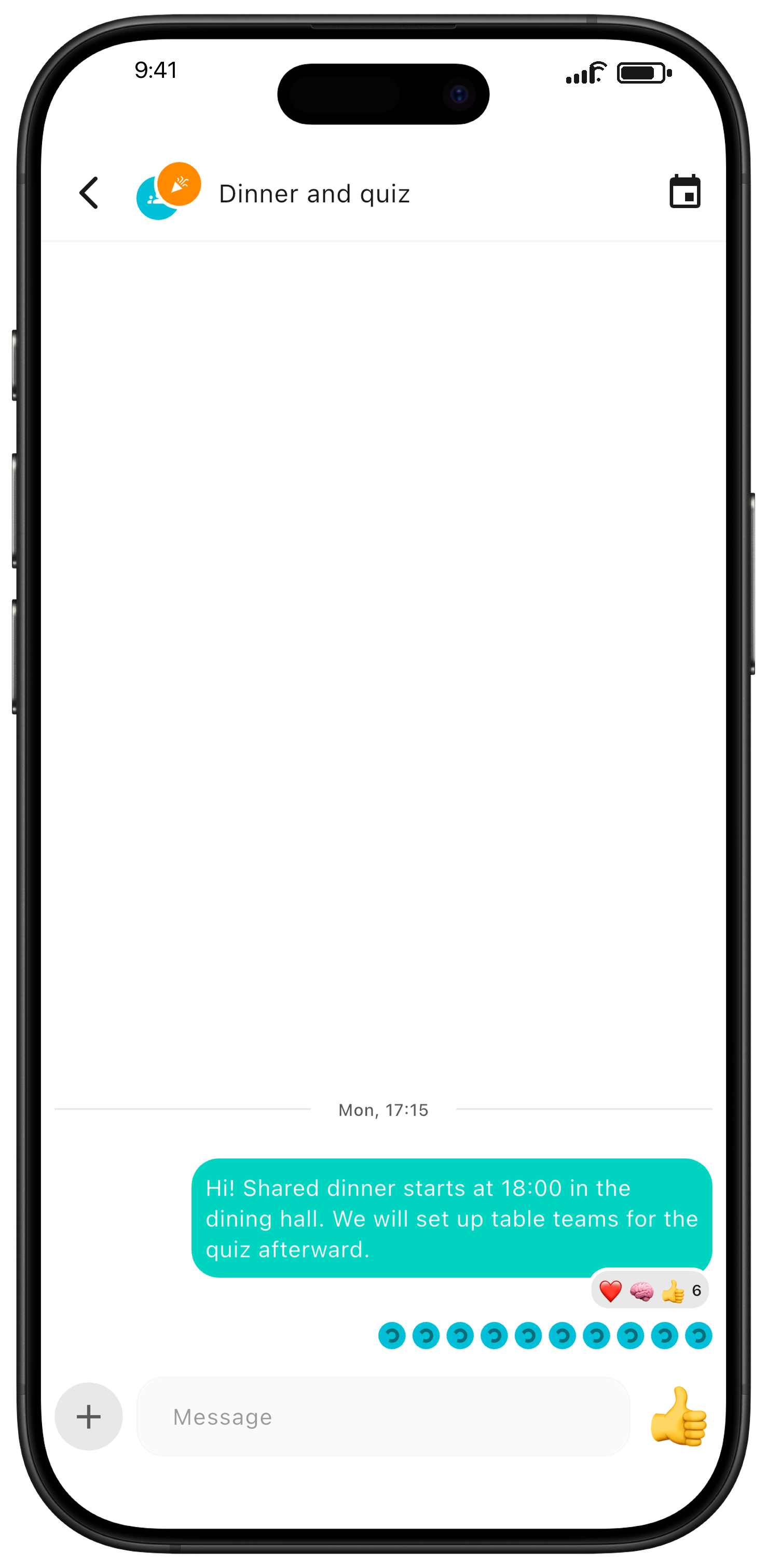
Practical info: on the detail page, you can create a chat connected to the event. That keeps questions about different plans out of one big chat — everything stays where it belongs.
Want new event types, missing functionality, or running into problems? Send an email to contact@zynkup.no.